|
A
|
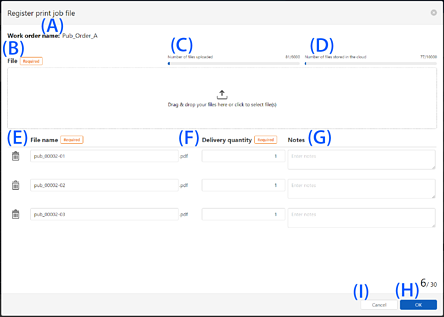
Work order name
|
Displays the selected work order name.
|
|
B
|
File(s)
|
Select the print file that you want to upload to Epson Cloud Solution PORT. You can select multiple print files at once.
The maximum size of one file is 3 GB.
Up to 30 print files can be uploaded in one work order. If you want to upload more print files, divide them into multiple
work orders.
|
|
C
|
Uploaded Files
|
Displays the number of uploaded print files for the number of print files that can be uploaded with the contracted plan.
|
|
D
|
Stored Files
|
Displays the number of saved print files in the cloud for the number of print files that can be saved with the contracted
plan.
|
|
E
|
File name
|
Displays the name of the print file selected in the File(s) field. You can edit the file name.
You can cancel the print file selection by clicking  . .
|
|
F
|
Delivery Copies
|
Enter the total number of copies to print for each print file. Click the up and down arrows  to increase or decrease the number. to increase or decrease the number.
|
|
G
|
Notes
|
Enter a note for each print file.
|
|
H
|
OK
|
Click to register the additional print files to the work order.
|
|
I
|
Cancel
|
Click to cancel changes and return to the Work Order Management screen.
|


 Home
Home

 next to the work order name on the