
Details of the Create Work Order Screen
You can register a new work order on the Create Work Order screen.
You can also change the information for the registered work order from the Work Order Management screen.
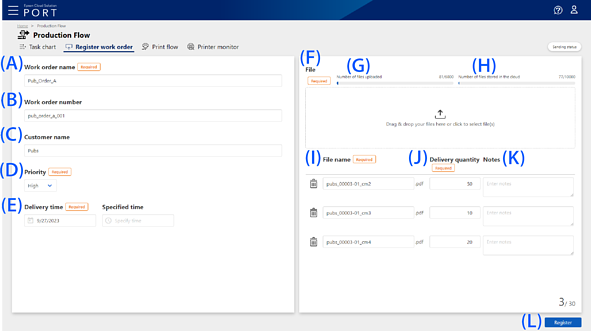
|
Item |
Description |
|
|---|---|---|
|
A |
Work order name |
Enter a work order name. You can enter up to 64 characters. |
|
B |
Work order number |
Enter a work order number. You can enter up to 64 characters. |
|
C |
Customer name |
Enter a customer name. You can enter up to 64 characters. |
|
D |
Priority |
Select the priority of the work order. The following happens when you select High.
|
|
E |
Delivery Date |
Click to display the calendar, and then select a date. To specify a time, select the time in Delivery Time or enter the time directly. Click |
|
F |
File(s) |
Select the print file that you want to upload to Epson Cloud Solution PORT and register in the work order. You can select multiple print files at once. The maximum size of one file is 3 GB. Up to 30 print files can be uploaded in one work order. If you want to upload more print files, divide them into multiple work orders. |
|
G |
Uploaded Files |
Displays the number of uploaded print files for the number of print files that can be uploaded with the contracted plan. |
|
H |
Stored Files |
Displays the number of saved print files in the cloud for the number of print files that can be saved with the contracted plan. |
|
I |
File name |
Displays the name of the print file selected in the File(s) field. You can edit the file name. You can cancel the print file selection by clicking |
|
J |
Delivery Copies |
Enter the total number of copies to print for each print file. Click the up and down arrows |
|
K |
Notes |
Enter a note for each print file. |
|
L |
Submit |
Click to display the screen showing the upload status of the print files and register the work order. |
 icon is displayed next to the work order name on the
  to clear the specified time. If you do not specify a time, the time is not displayed in the delivery time.
 .
.
 to increase or decrease the number.